For any support please don't hesitate to contact us at
Support Center. We
provide 13 hours real-time support for our customers.
We would like to thank you for choosing Flexio – Creative Portfolio WordPress
Theme.
Getting started
You need at least WordPress version 5.5.0+ installed for this theme to work
properly. It is strongly recommended that you always use the latest stable
version of Wordpress to ensure all known bugs and security issues are fixed.
Other getting_started:
PHP version 7.4 or greater. But for maximum speed gain we recommend
you to use PHP version 7.3+.
MySQL version 5.6 or greater OR MariaDB version 10.0 or greater.
The contents of the theme package downloaded from ThemeForest
Flexio.zip - An Installable WordPress Theme zip
file. this file you need to upload to WordPress.
Flexio-child.zip - This file contains the basic
child theme that you can use with our theme. Just installing it
won’t hurt and in case you decide to make some changes/extend the
source code of the theme, it will be very helpful because it helps
not to lose your custom changes after updating the parent theme. More on child
themes
Plugins - This folder contains plugins required to
work with our theme.
Demo Data - This folder contains the demo content
file which will help you to import the demo manually.
Licensing - This folder contains the terms and
conditions of the license.
Documentation - This folder contains what you are
reading now :)
WordPress Installation
Please follow the instructions in the video to see how you can install
WordPress on your
hosting:
Important! if you download the All Files archive
from ThemeForest and try to upload it to your WordPress, you will
receive this error: Theme is missing the style.css
stylesheet. Please make sure you unzipped the main
archive and are uploading the correct file to your WordPress.
When you are ready to install a theme, you must first upload the theme files
and then
activate the theme itself. The theme files can be uploaded in two ways:
1. Using Theme
Uploader
Follow the steps as instructed in the images below:
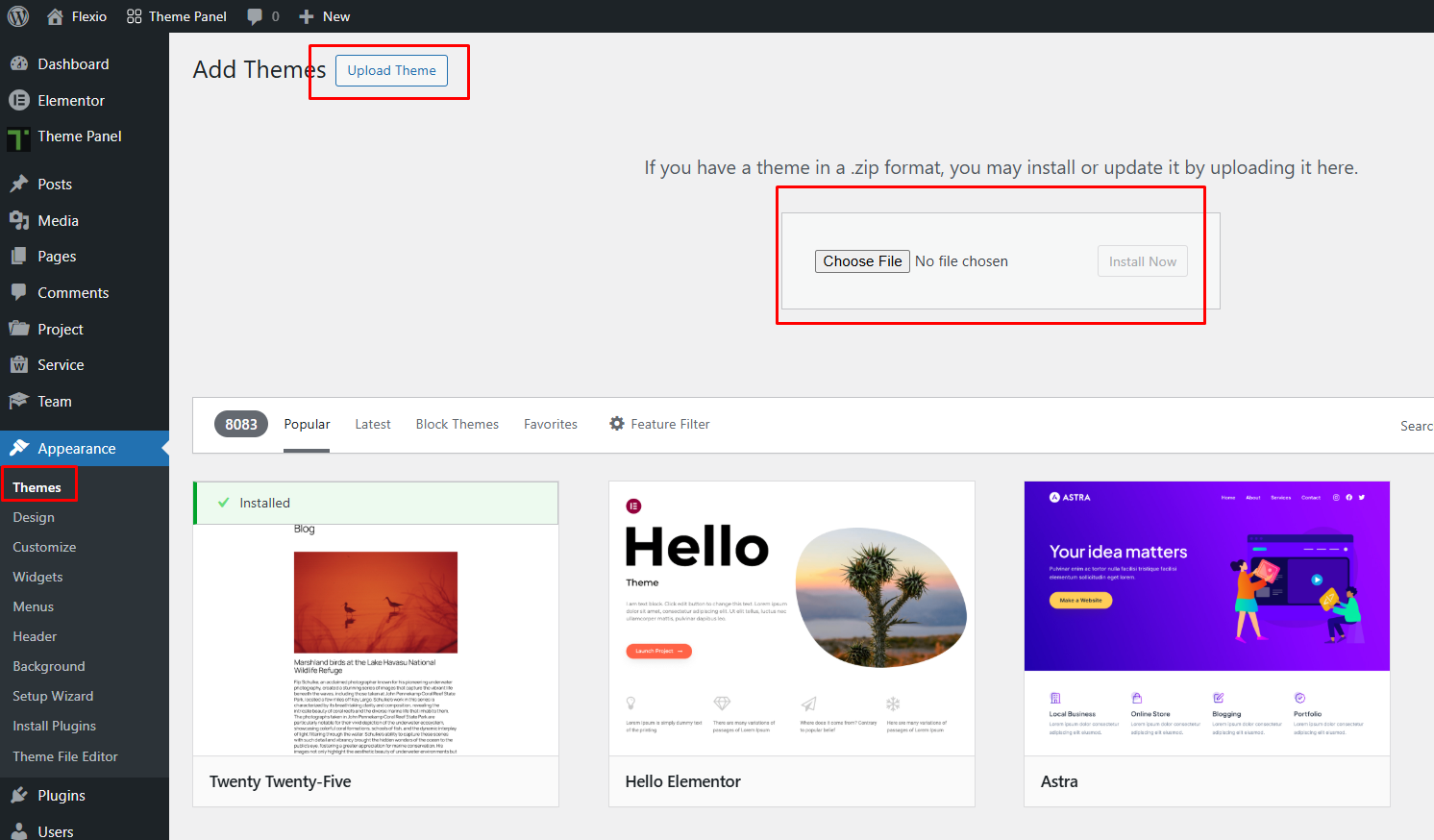
From the dashboard go to AppearanceThemesAdd New Upload Theme
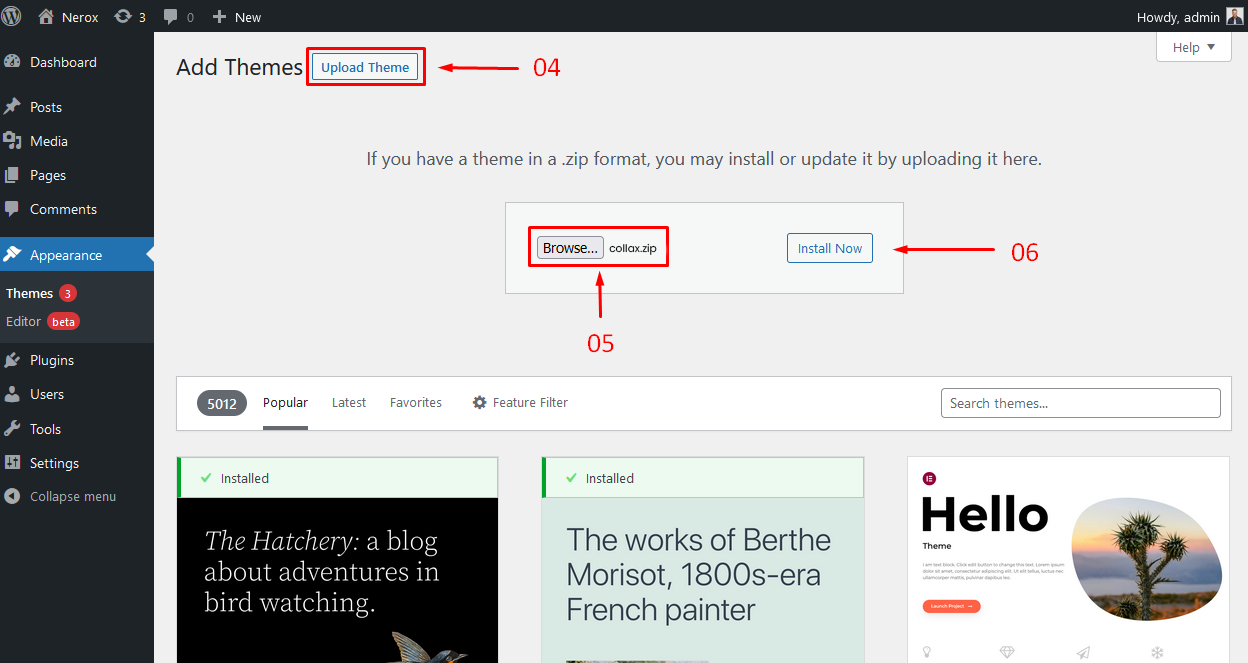
Click on “Choose File” and select
Flexio.zip
Click on “Install Now”.
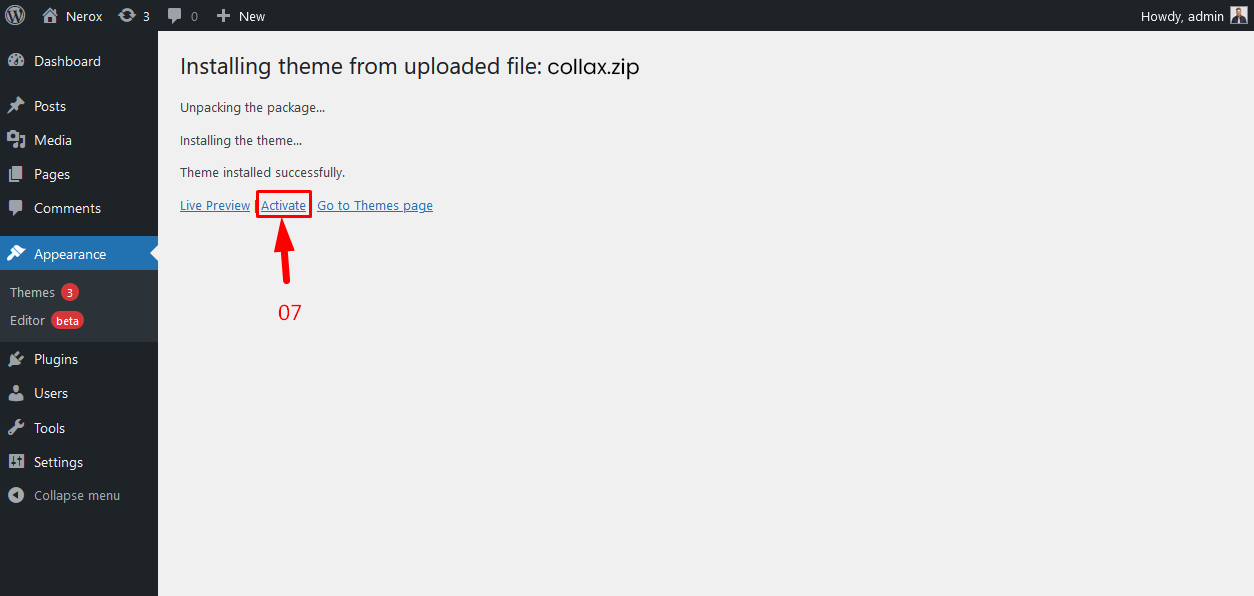
Active the Theme
N.B: All plugins must be installed and activated if you want your site
to look exactly like demo.
Appearance → Themes → Add New Click on “Choose File” and select
Flexio.zip and Click on “Install Now”.Active Flexio Theme
2. Using FTP Clients
Follow the following steps to upload your theme using FTP clients:
Use an FTP such as FileZilla and go to your WordPress installation
director
Navigate to /wp-content/themes/ folder and upload
the theme folder there
Log in to your WP Admin Dashboard and open the AppearanceThemes menu
You will now see Flexio Theme listed among the
other themes. Click on Activate and you’re done!
3. Updating Theme
Occationally we provide updates which includes new features and bugfixes.
Updating WordPress theme is standard WordPress functionality.
Before Updating Theme:
** Before updating please make sure to keep a
backup of your installed theme and plugins (eg. flexio-core) to be on
safe side.
After completed the above steps successfully, Navigate to
Appearance -> Themes. Here you'll see an "Update now" link
beside your theme. Click on that link and your theme will be updated
automatically.
Method 2: By Uploading zip File
From WordPress Admin Panel, Navigate to Appearance -> Themes.
Activate any other theme (eg. Twenty Seventeen) than the current
one.
Delete Flexio Theme.
Now you have to upload the updated theme zip file. To do this,
Navigate to Appearance -> Themes -> Add New -> Upload. Go to
browse, and select the zipped theme folder. Hit "Install Now" and
the theme will be uploaded and installed.
Method 3: By FTP
Using your FTP client, navigate to "/wp-content/themes/" folder on
your server and delete the "Flexio" folder from there.
Now upload the latest non-zipped theme folder into that
"/wp-content/themes/" folder .
After Updating Theme:
** After updating the theme please update all
plugins which come with the theme.
4. Installing required plugins
Flexio theme requires a set of core and additional plugins to function
correctly. A plugin is an additional component that offers functionality and
features beyond a typical WordPress installation. Without them, most of its
functionality is not available. After installing the theme you will be
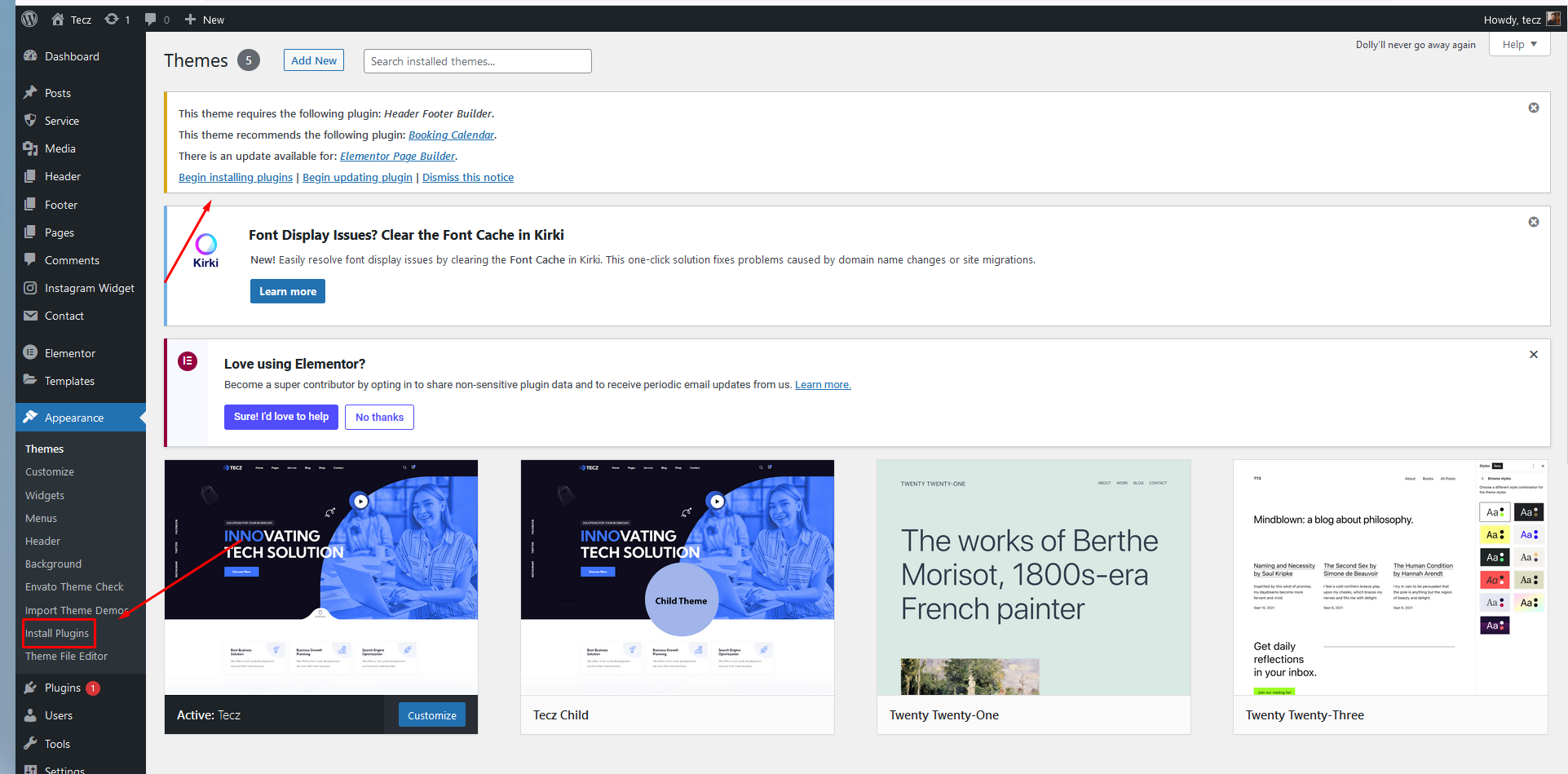
prompted to install the required plugins at the top of your dashboard.
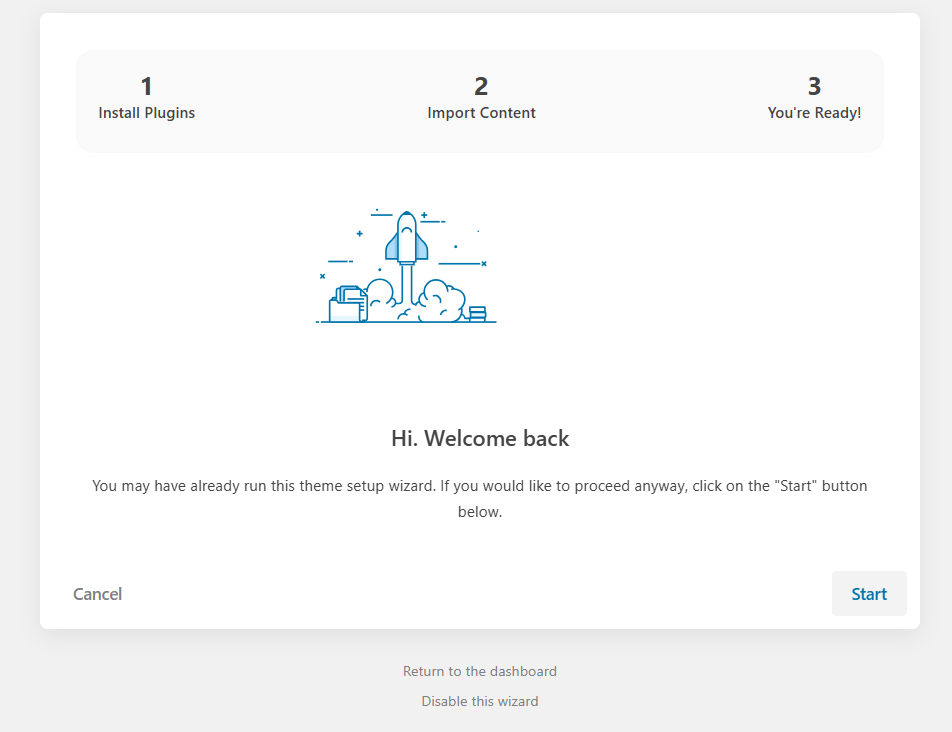
From the dashboard go to Flexio Setup Wizard and follow the instructions.
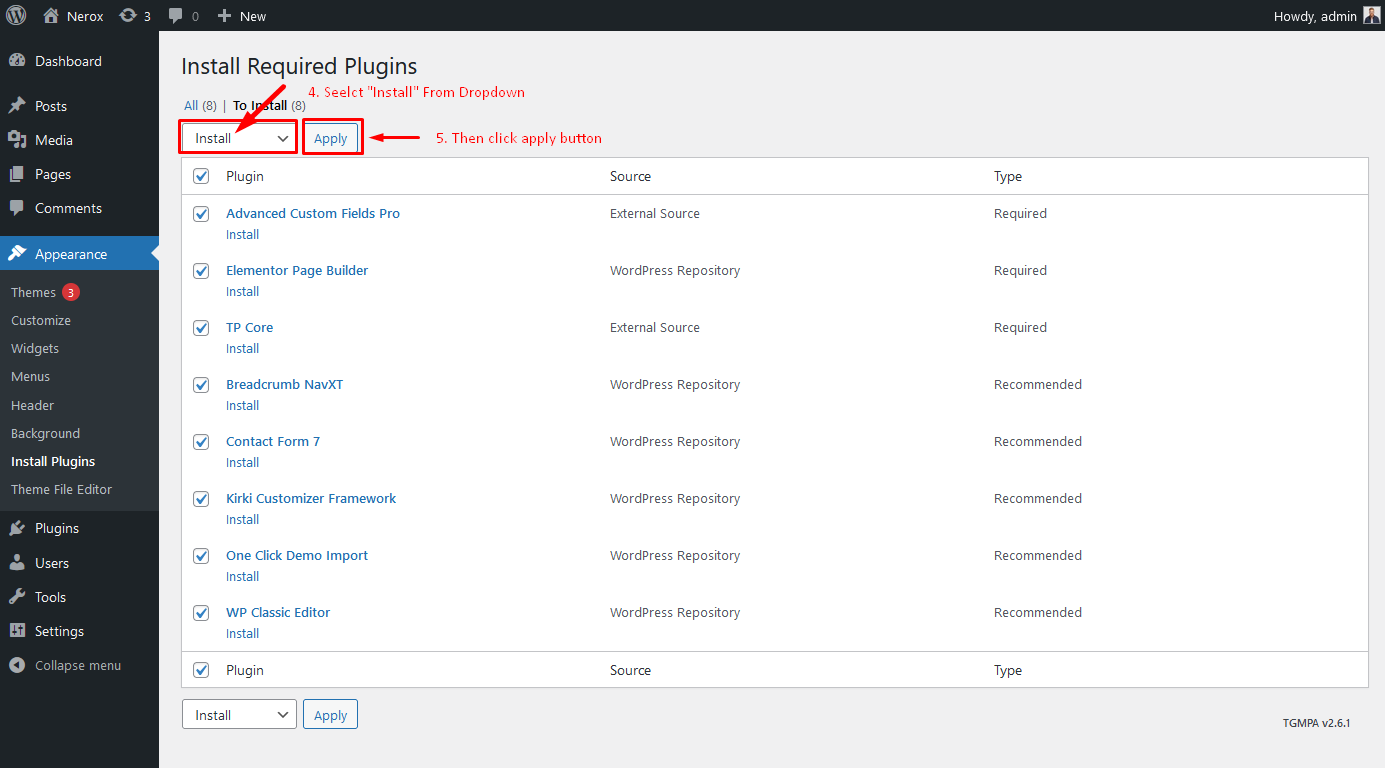
Toggle all the required plugins and hint “Install”;
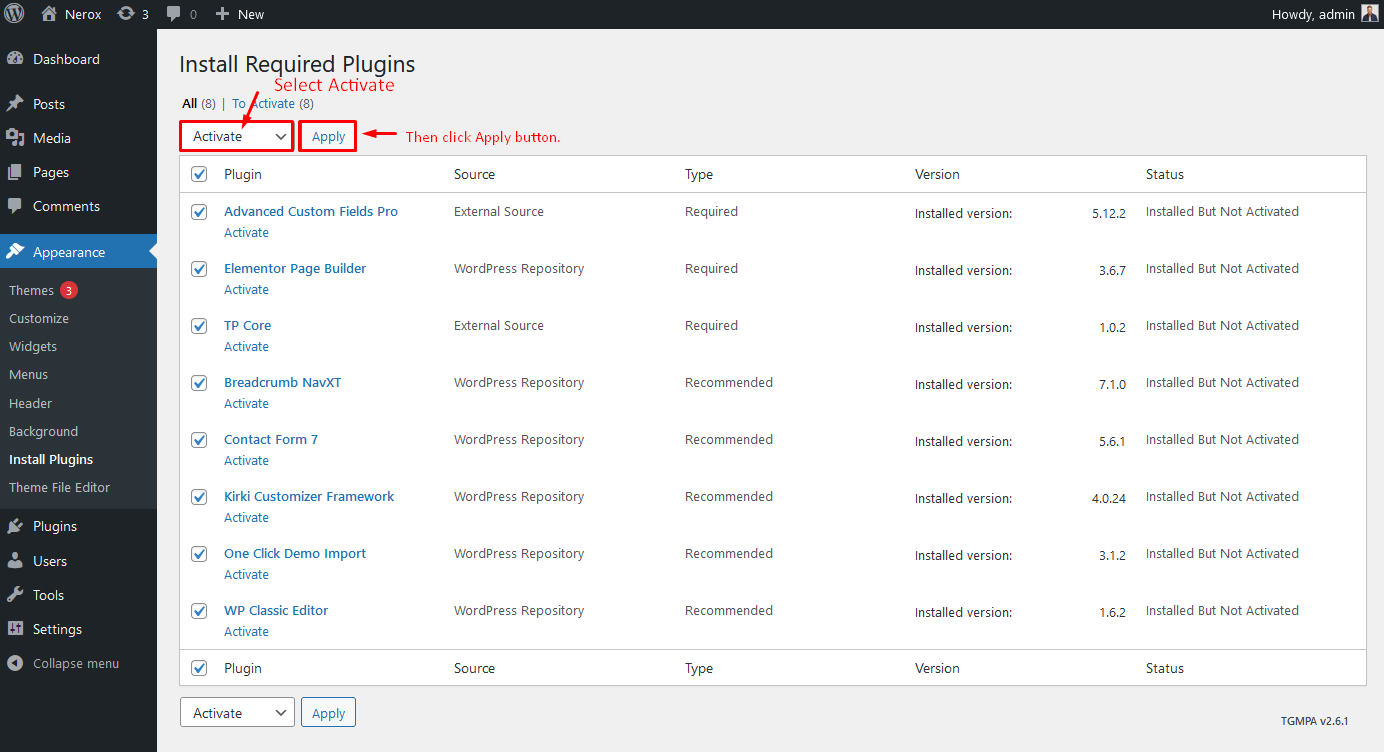
The last step will be activating the plugins.
Click on the begin installing plugins link
to install all the required plugins.Select all and installSelect all and Activate
One-Click Import
Want to build your site like the demo? You can do it by only one click!
Note: Please remember that when you are done with
the demo import, your some existing settings will be replaced by the
demo contents Like: Your menu, Customizer. So it is recommended that
you should only do this in fresh site.
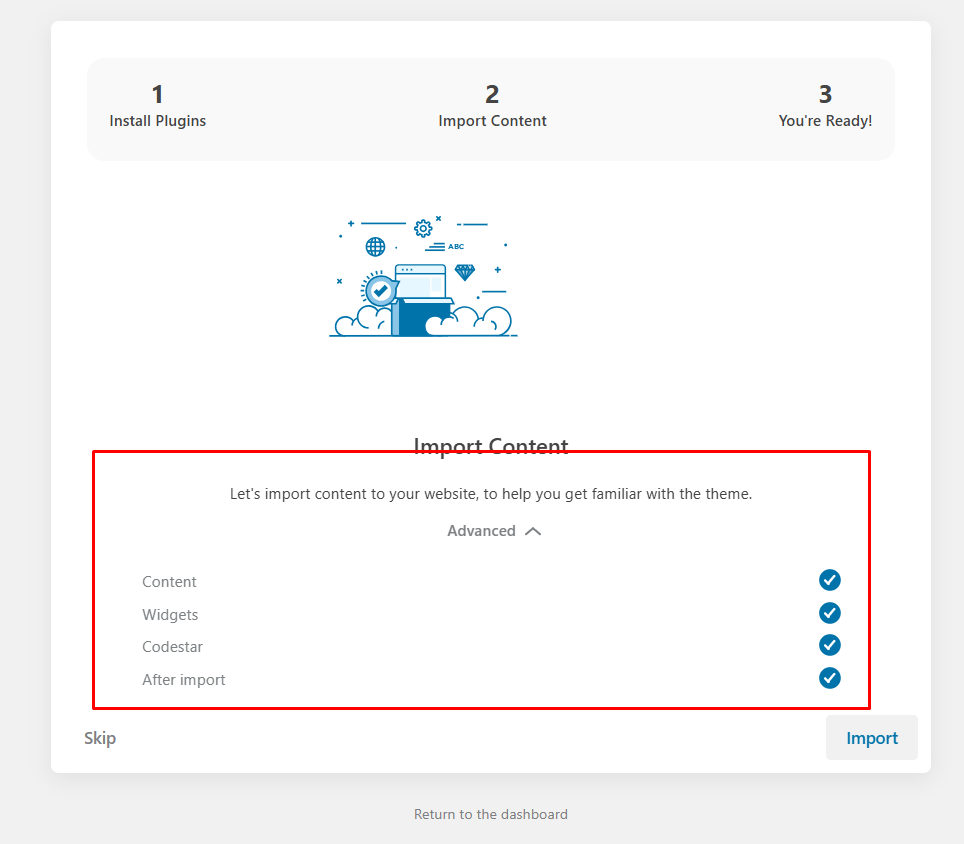
From the dashboard go to Flexio Setup Wizard
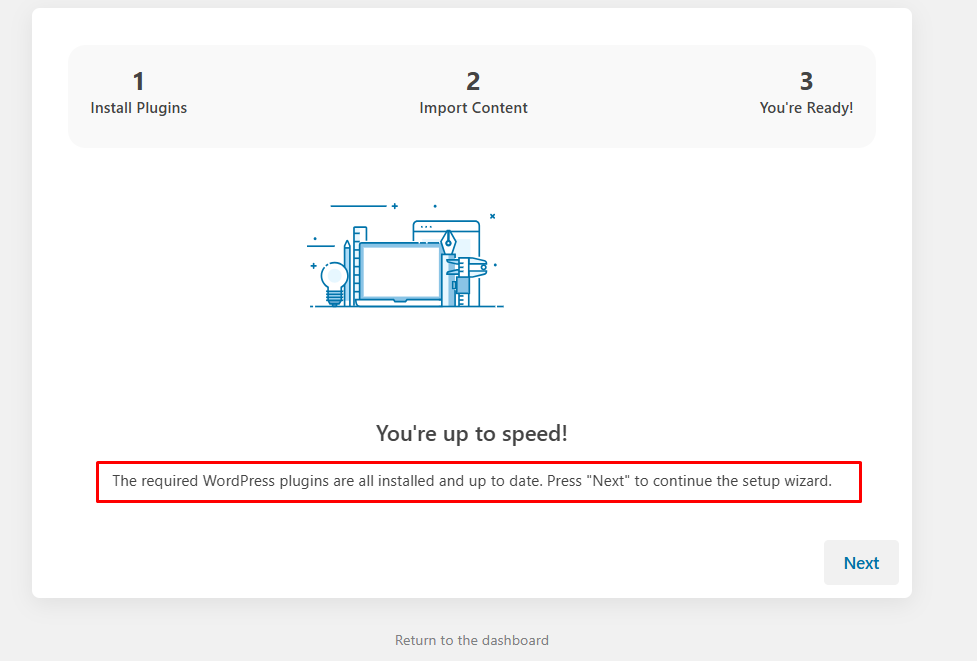
Choose the demo you want to install and click on the
“Next” button to proceed;
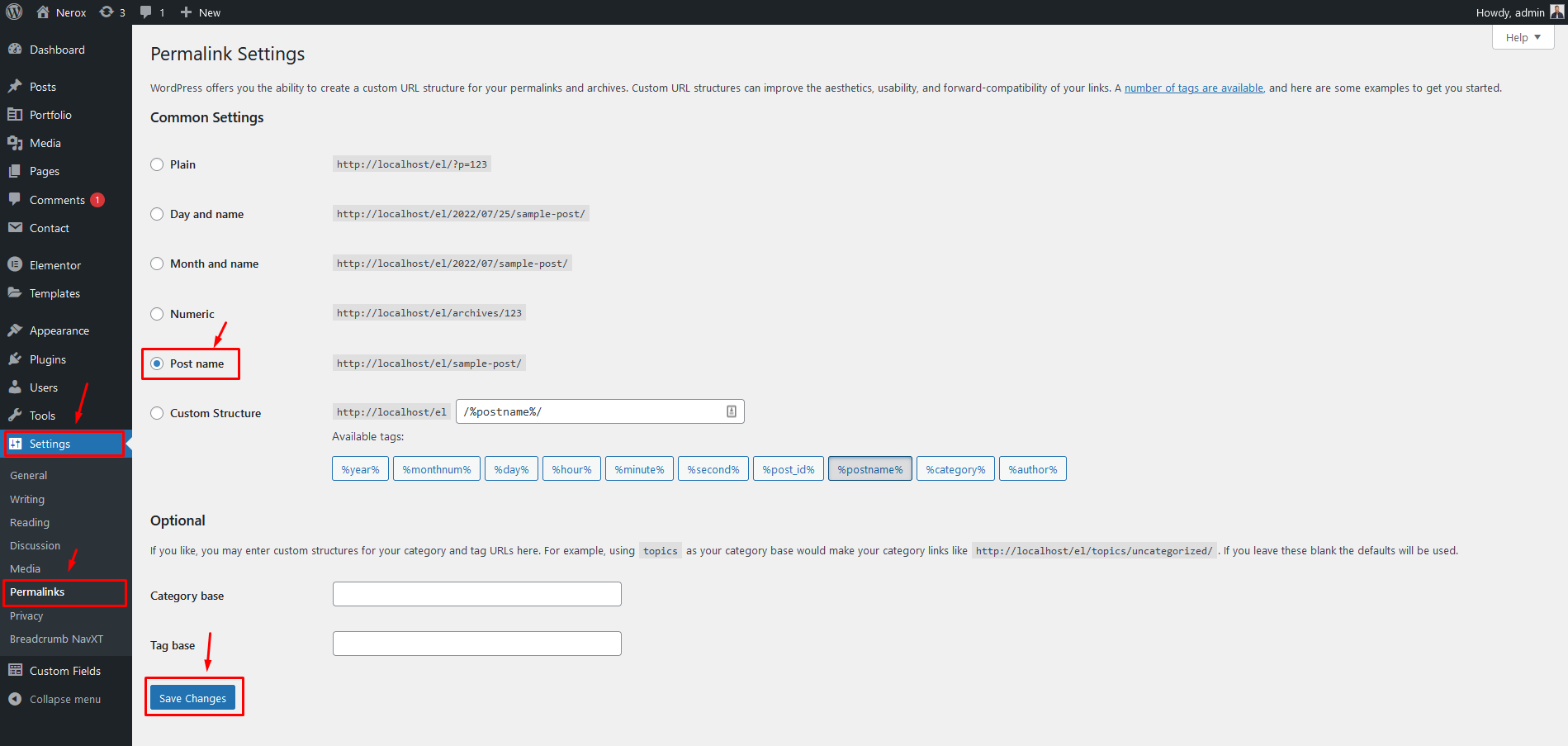
And change the permalink: From the dashboard go to
Settings
Permalink
go to Flexio -> Setup Wizard
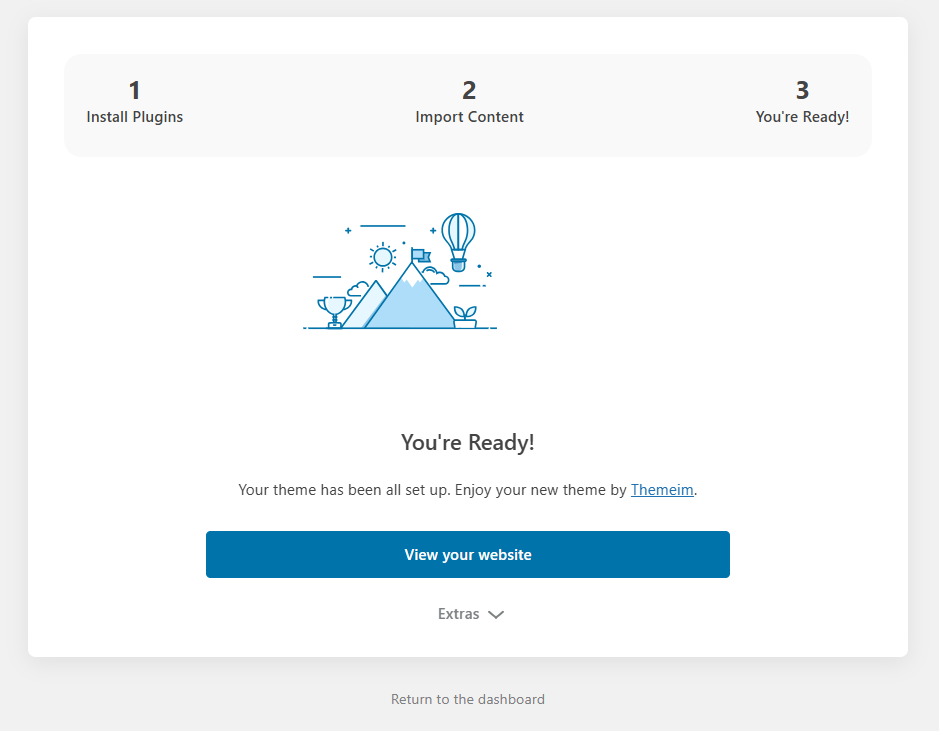
Click on the "Next" buttonClick "Yes, Import" ButtonImport Complete! Congrats,
your demo was imported successfully. You can now begin editing your
site.Change permalink
Where Is My Purchase Code?
To learn about how to find
your purchase code. When you buy a product from envato you get a purchase
code. visit the following link:
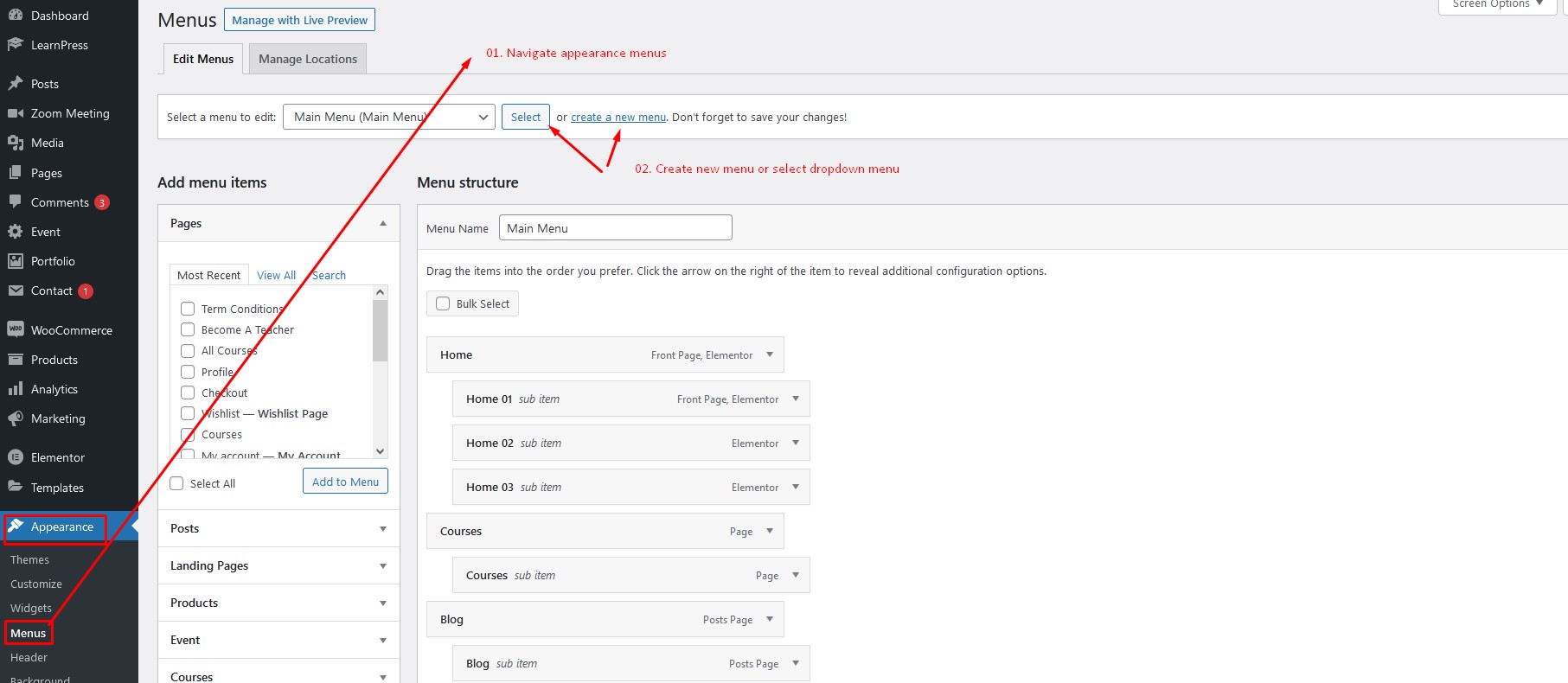
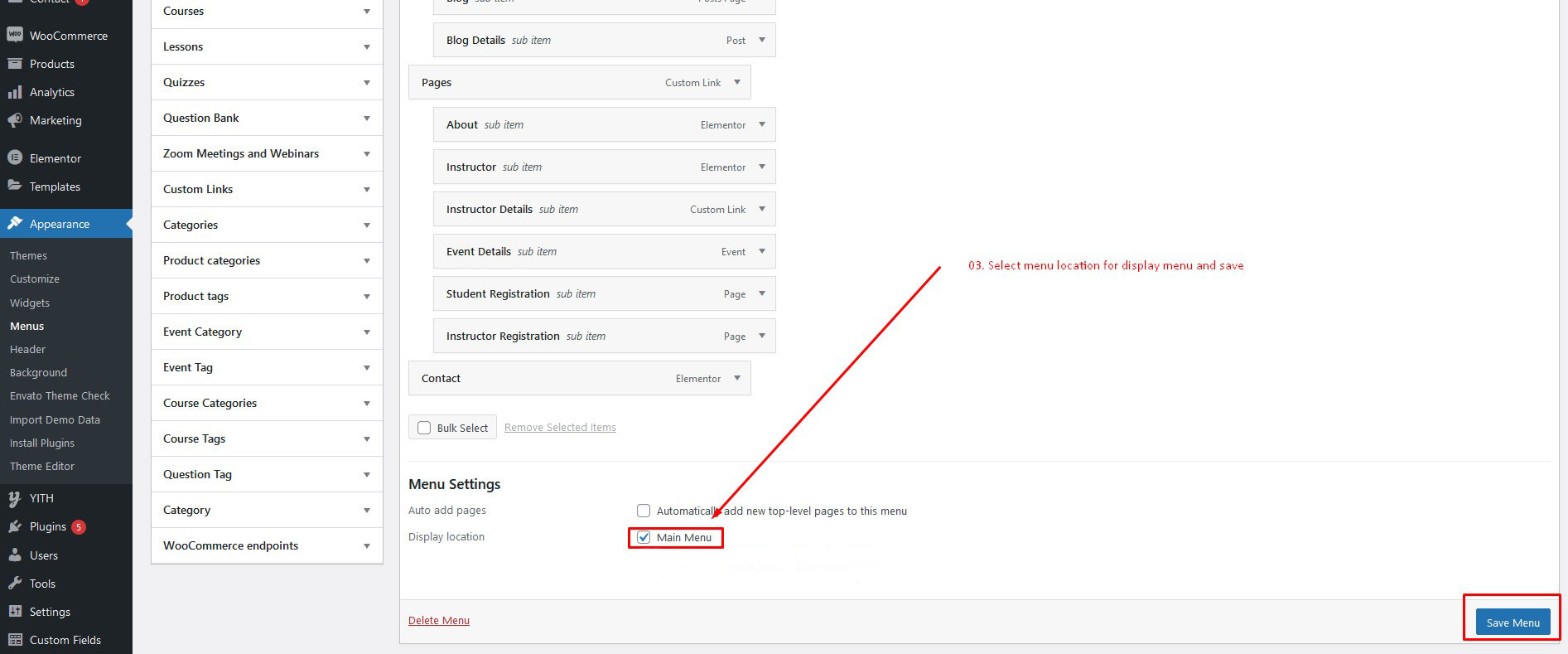
To customize the menu and megamenu please login to wp-admin and navigate to
Dashboard
AppearanceMenus and follow the following
steps:
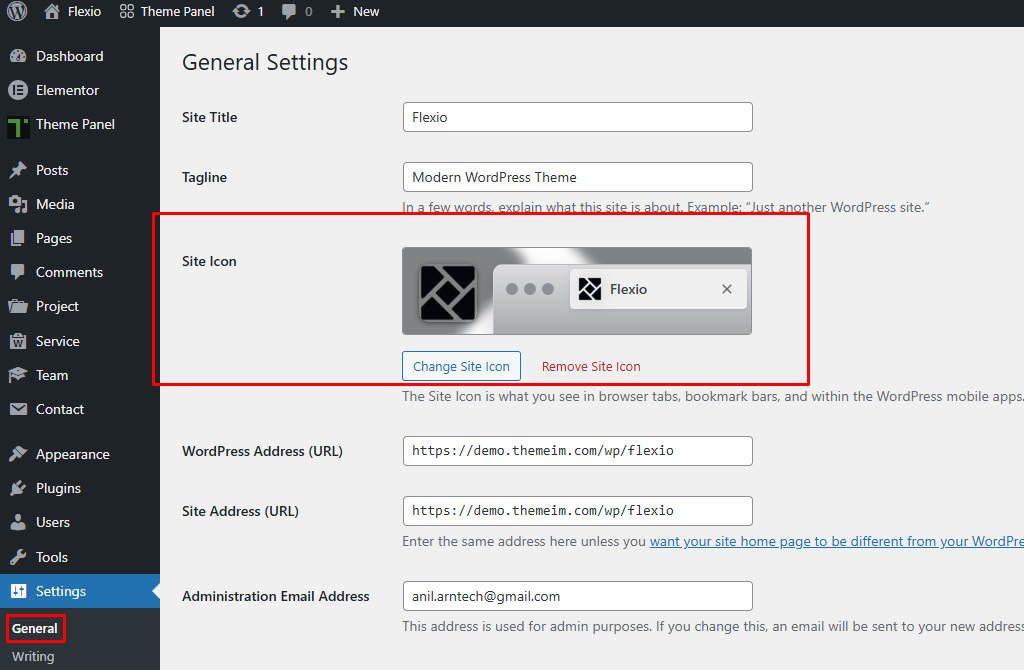
Change Site Title and Favicon Basic Site Setting
To change your Site title and Favicon login to wp-admin and navigate to Dashboard
AppearanceCustomizeSite Identity and follow the
following steps:
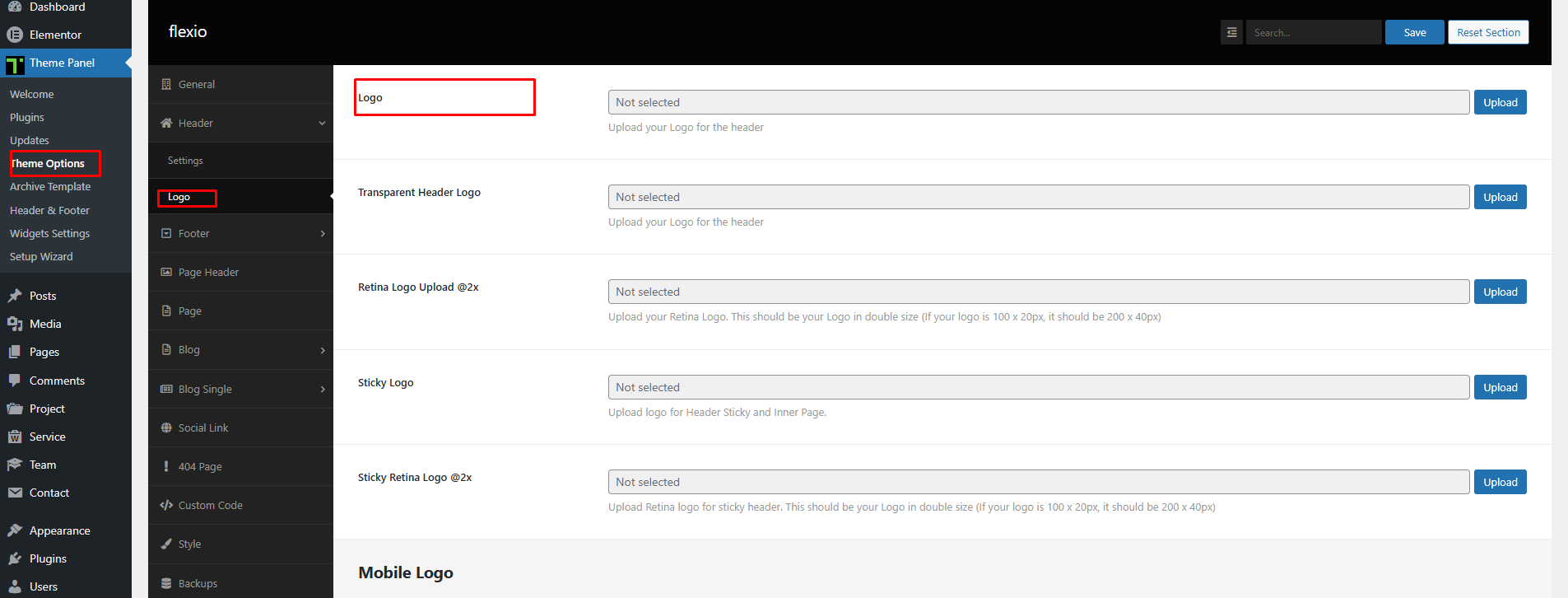
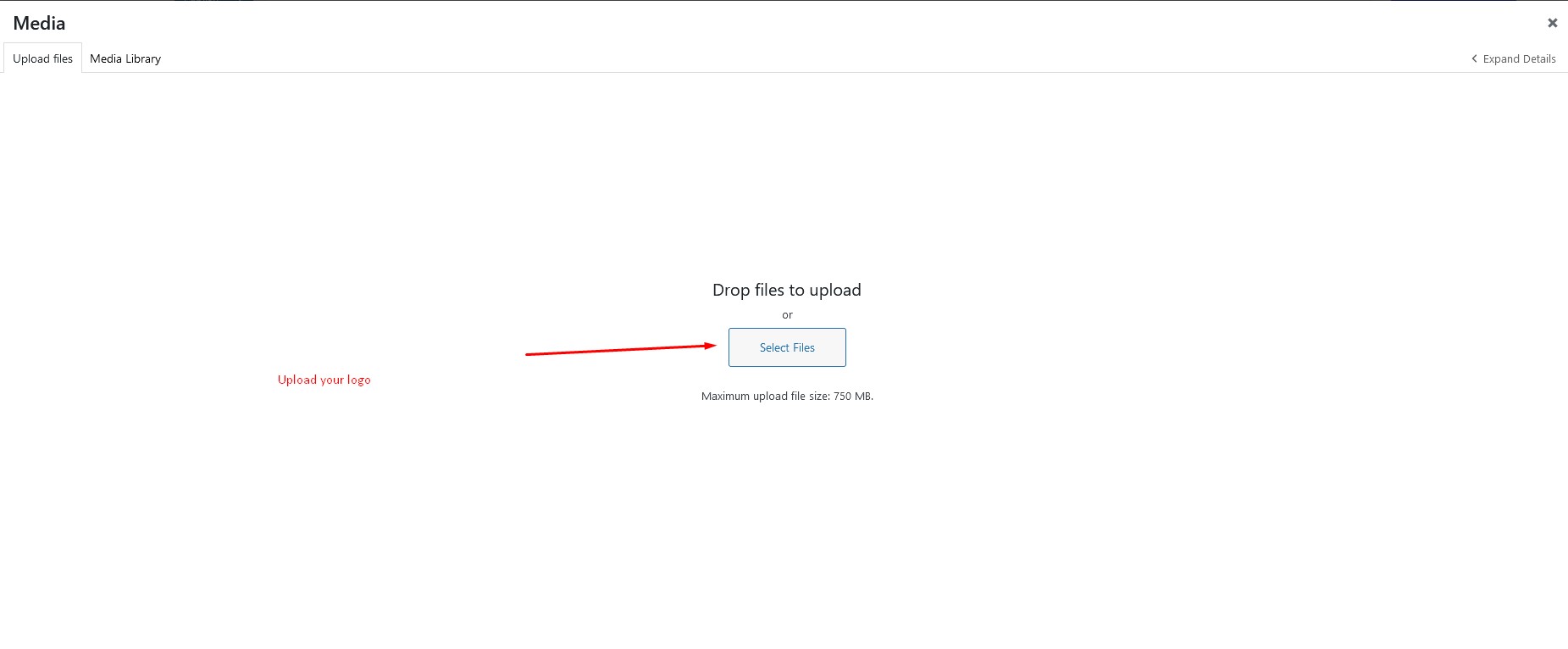
Change Logo
To change the site logo login to your wp-admin and navigate to
Dashboard FlexioTheme Options
and follow the following steps:
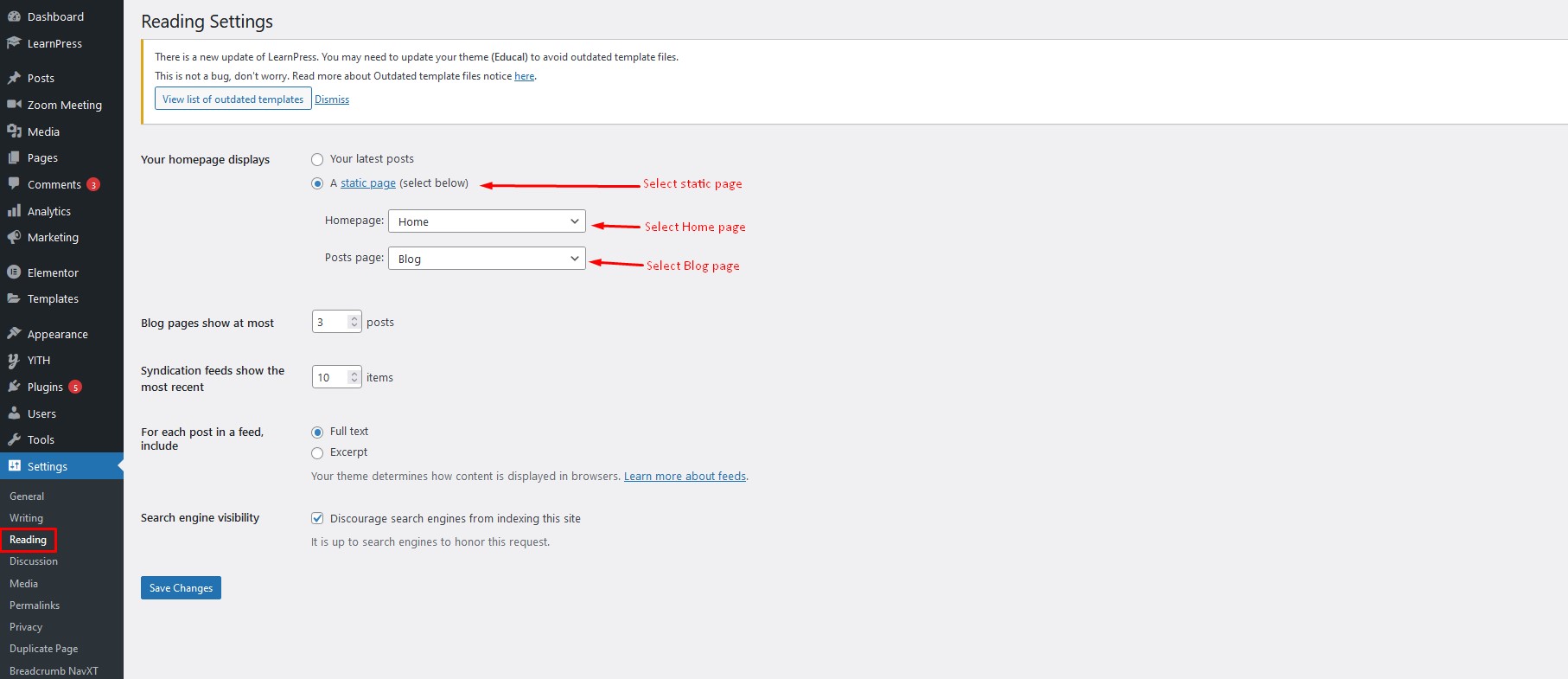
Set Home and Blog Page
To set the home and blog page, login to wp-admin and go to
Dashboard Settings Reading and follow the following steps:
Header
To change Theme Options navigate to
Dashboard FlexioTheme Options
and follow the following steps:
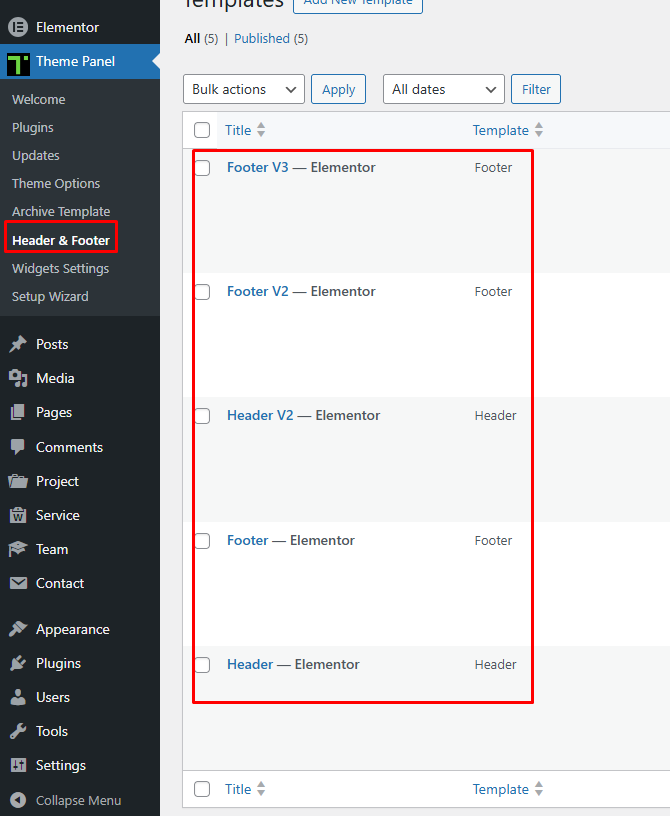
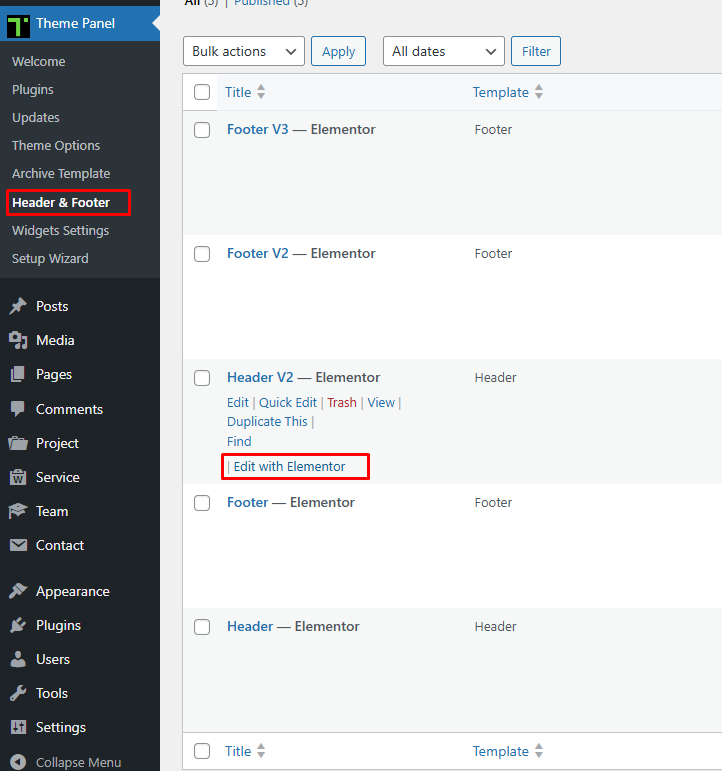
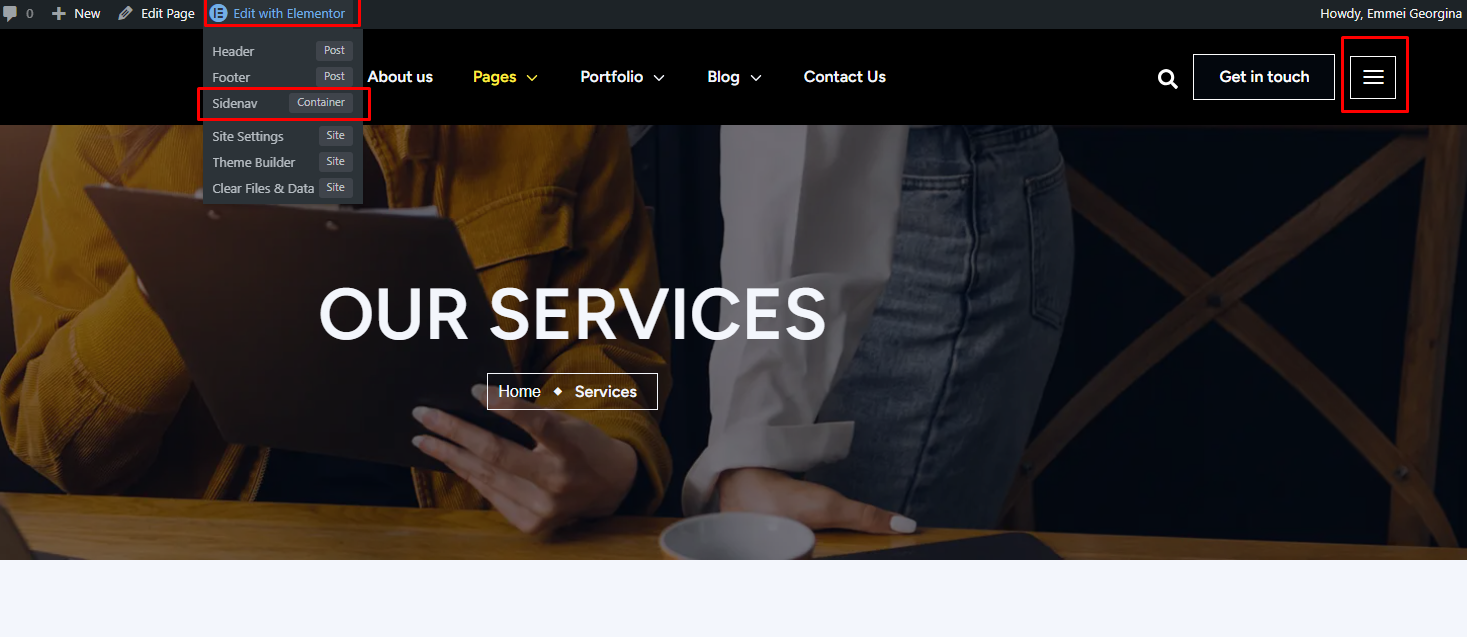
Header Side Info
To change Theme Options navigate to
Dashboard AppearanceElementor Header & Footer BuilderHeader 03
and follow the following steps:
Footer Layout
To change Theme Options navigate to
Dashboard AppearanceElementor Header & Footer BuilderFooter
and follow the following steps:
Translating Theme
You can translate this theme to another language easily. You have to
translate several things for your website to work properly:
Theme: Flexio
Plugin: flexio-core
There are many tools available for translation. But the easiest way is to use
plugin "Loco Translate". Using this plugin, you can literally
translate any WordPress themes or plugins if it supports translation.
--- Here's a step by step tutorial about translating any
themes and plugins using "Loco Translate":
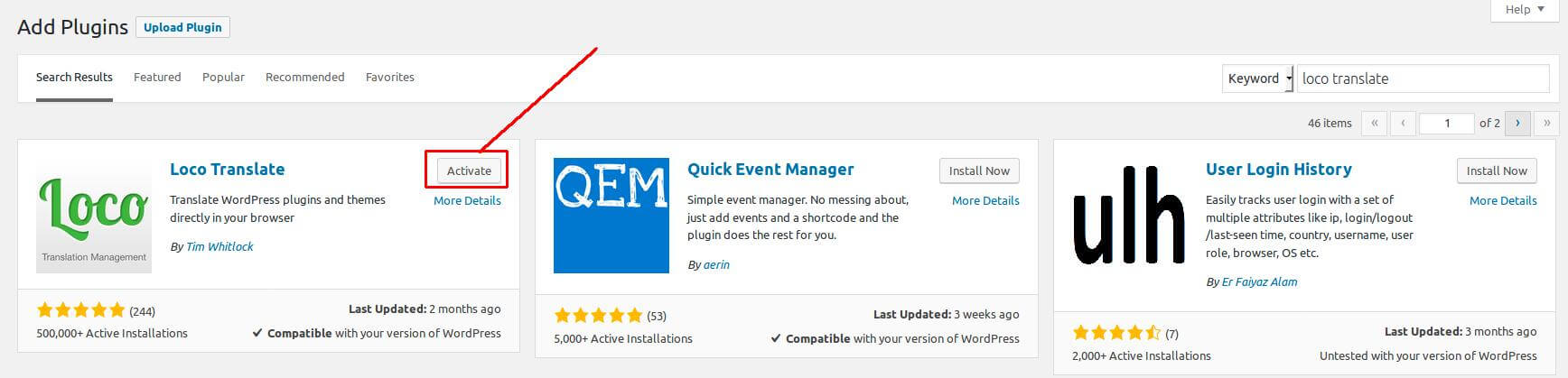
Step 1: Install and activate plugin "Loco
Translate".
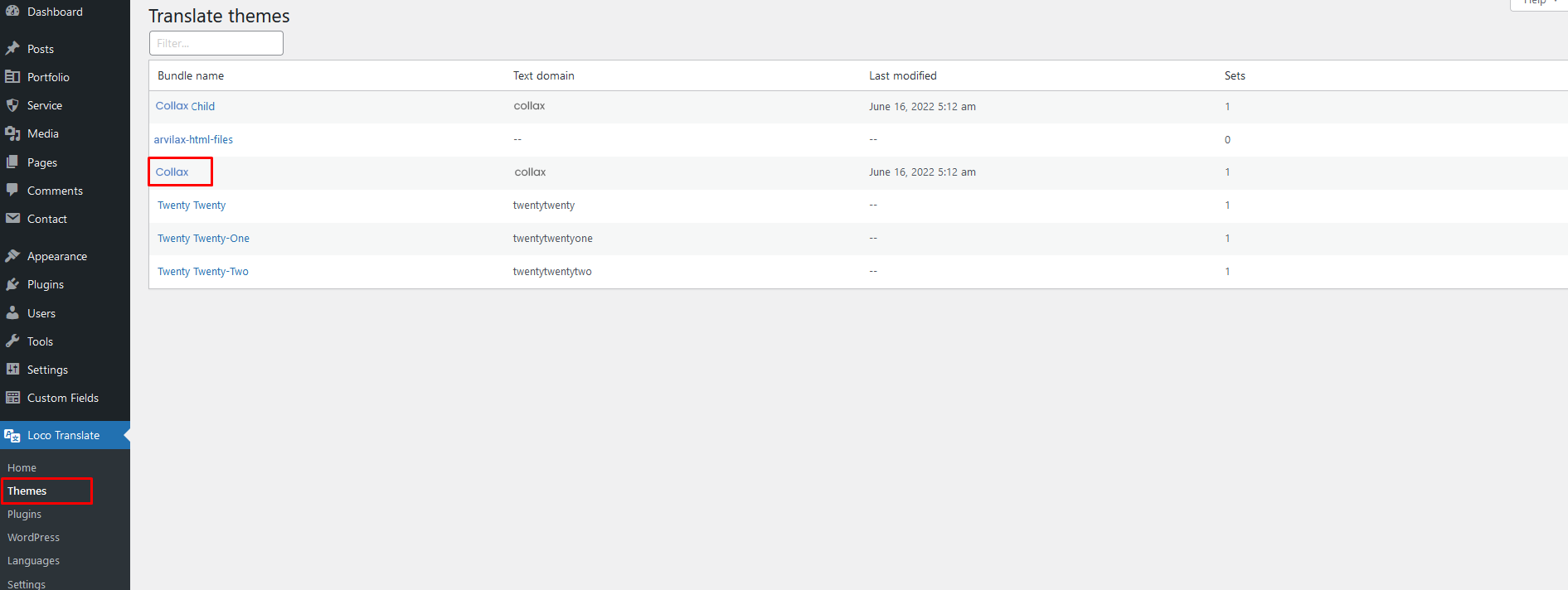
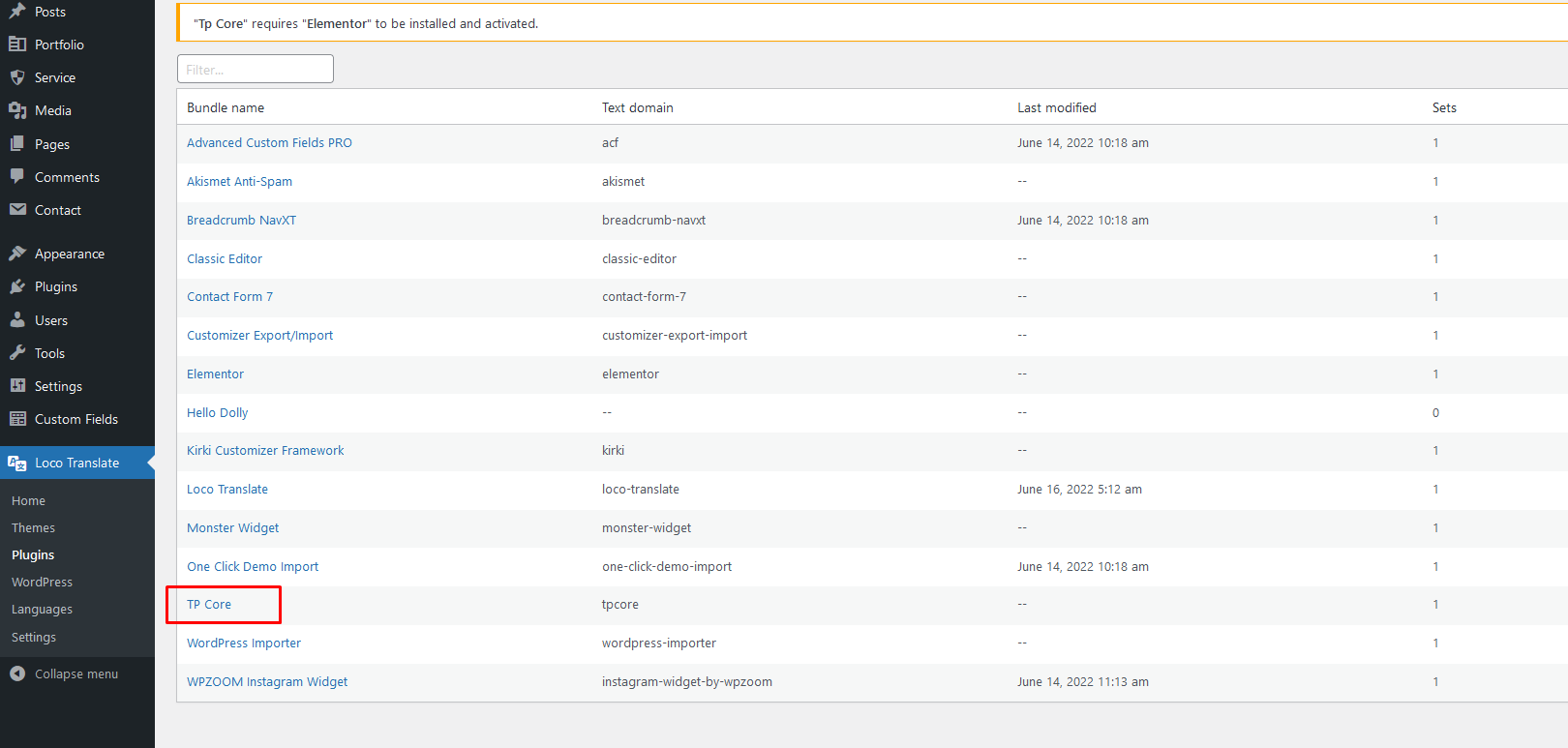
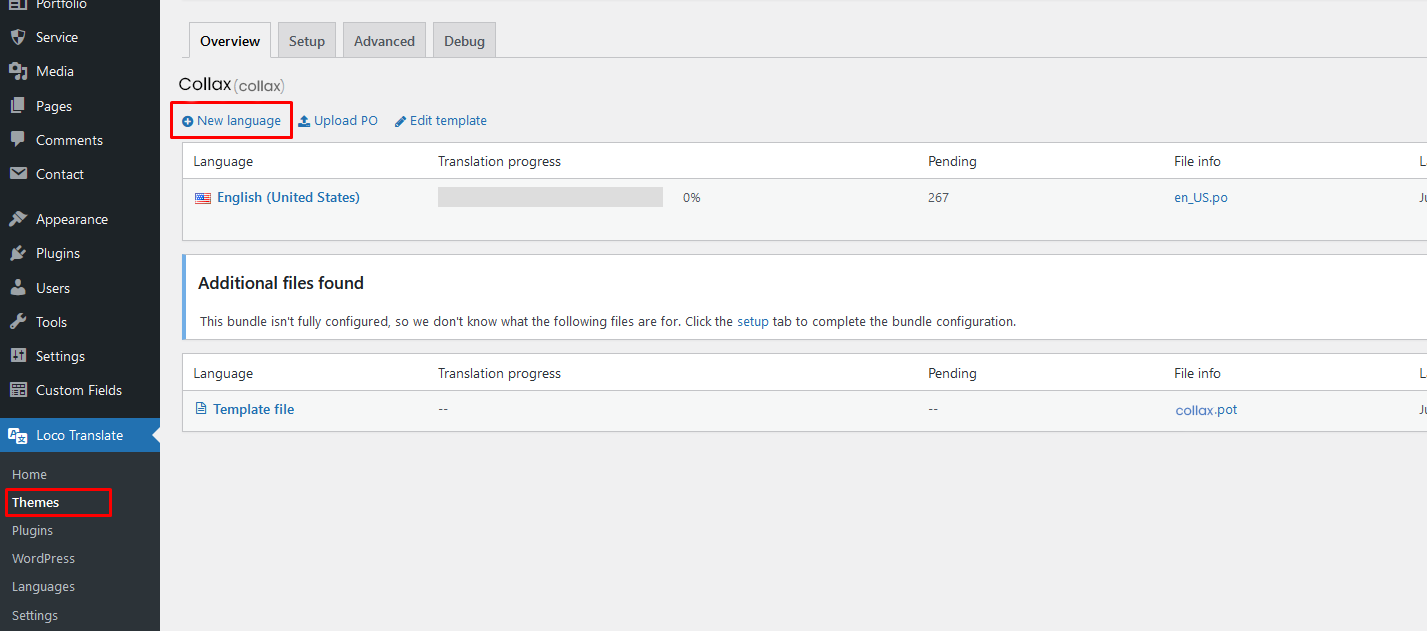
Step 2: Select the Theme or Plugin you want to
translate from "Loco Translate" menu.
Step a: Theme Translate
Step b: Plugin Translate
Step 3: Click on New language link.
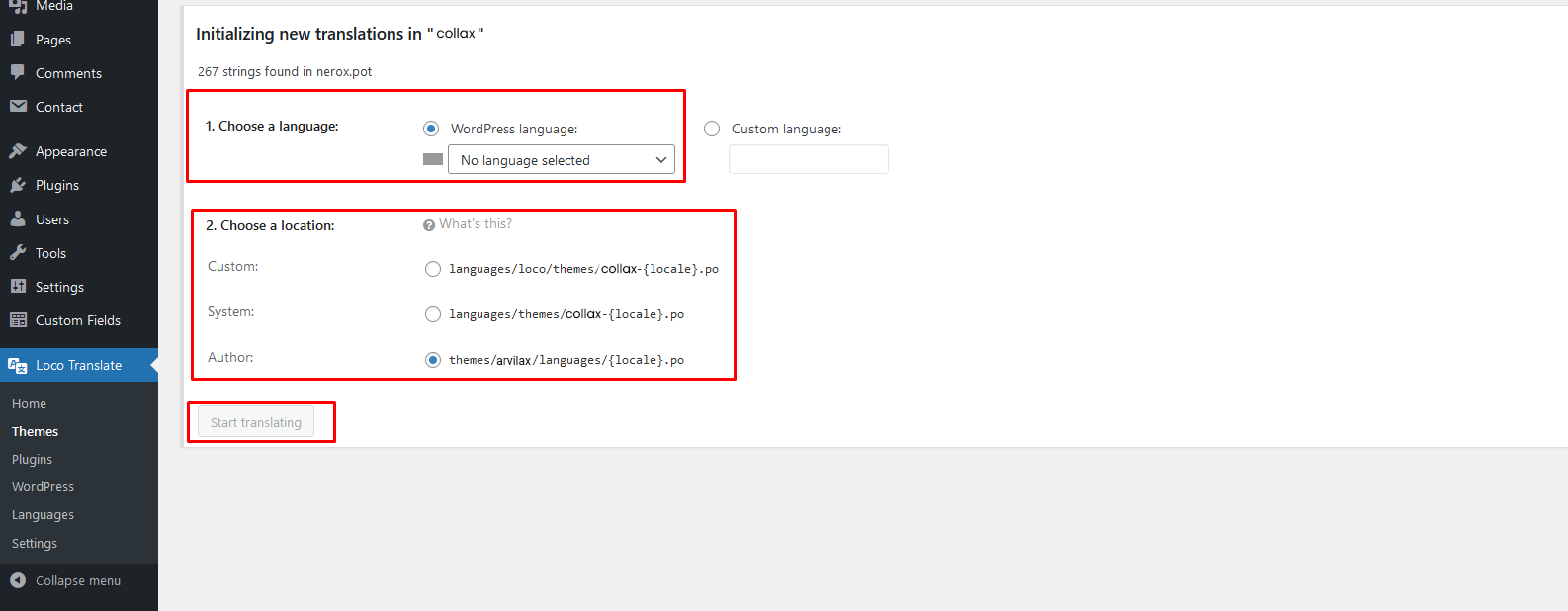
Step 4: Select your preferred language, and also
select your location as "System". Then click on "Start Translating" button.
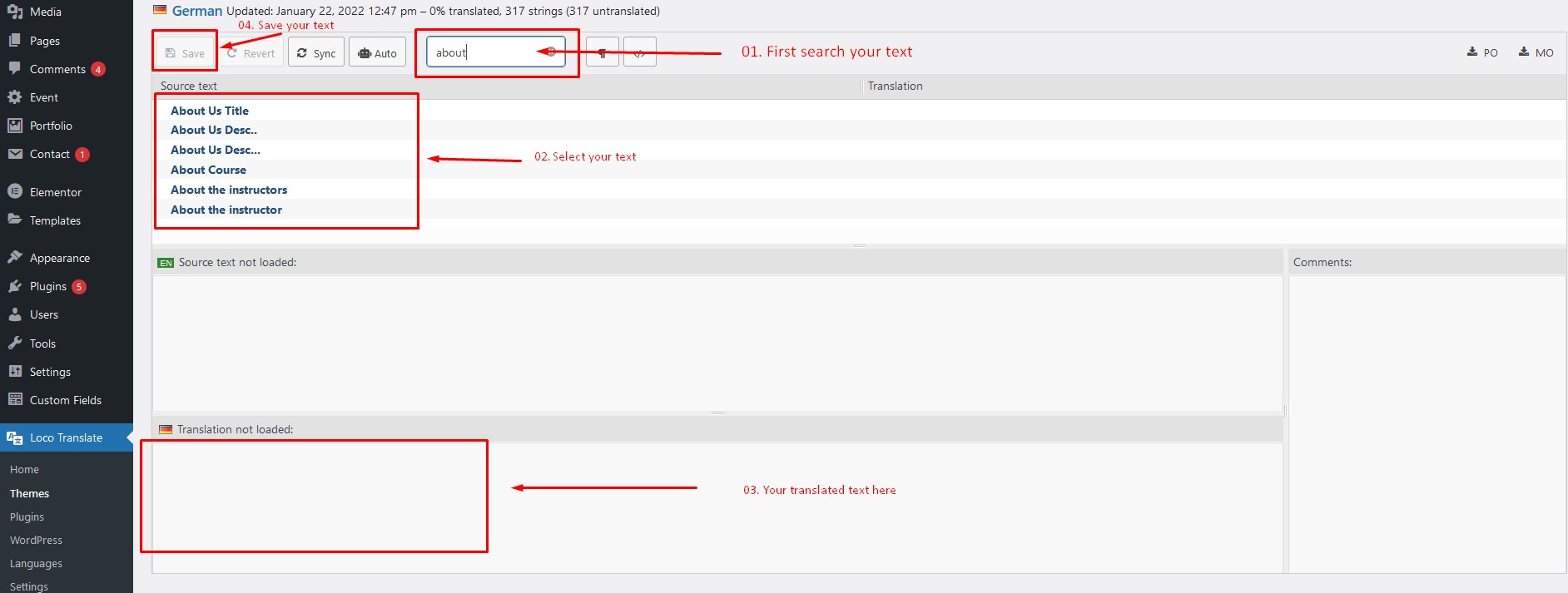
Step 4: Click on the "Sync" button for the first
time. Then start translating strings like the image below.
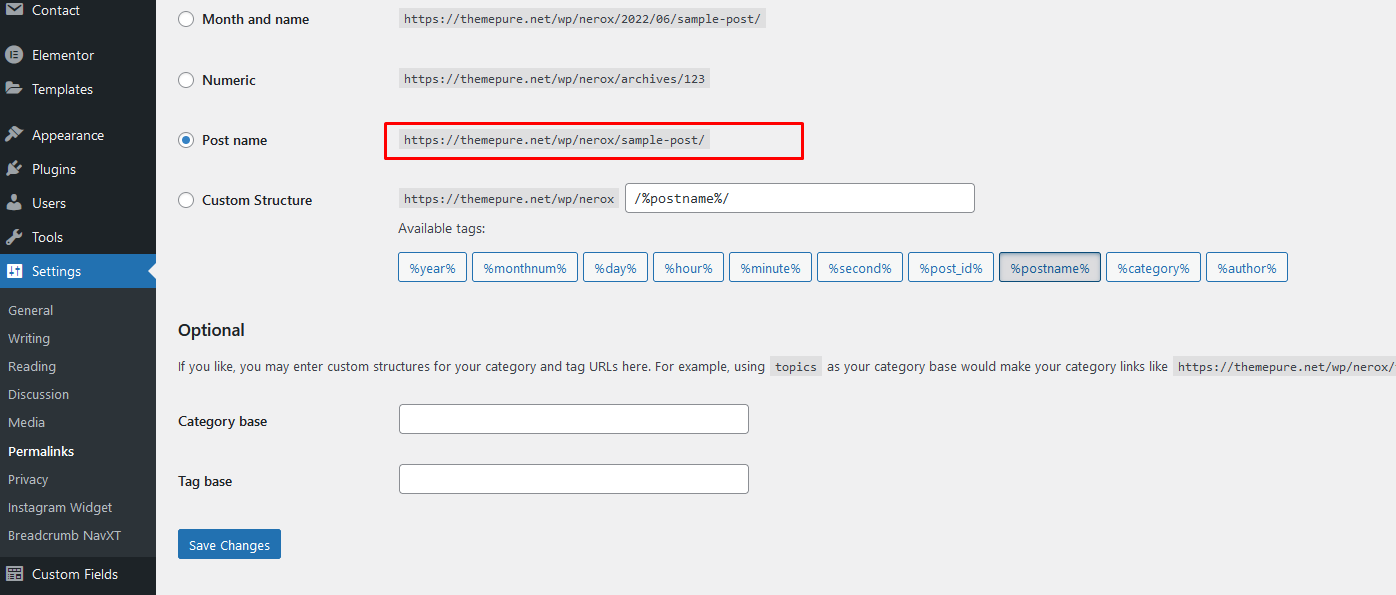
404 Error in all pages
If you face this type of issue, please update your permalink. To update
permalink, navigate to Settings -> Permalink and then click on
Save Settings button.
17. Contact
If you face any issue please contact us at
Support
Ticket. We provide 15 hours real-time support for our customers.